



Instructie rittenregistratie
Voor zakelijke voertuigen is een sluitende rittenregistratie vereist wanneer u geen bijtelling betaalt en moet aantonen dat u op jaarbasis niet meer dan 500 privékilometers rijdt. Om dit eenvoudig te maken, heeft Rental Tracker een handige rapportagetool ontwikkeld waarmee u uw ritten per periode kunt registreren en zakelijke en privékilometers kunt specificeren.
Op deze pagina leggen wij stap voor stap uit hoe u de Belastingdienst-rapportagetool gebruikt.
Accurate journey records
- The make of vehicle
- The type of vehicle
- The vehicle’s registration number
- The journey details
- Date of the journey
- Starting and final odometer readings
- Departure and arrival addresses. If you had an appointment and drove there from your place of work and back again, you have made two journeys
- Period during which the vehicle was used
- Route you took (if different from your usual route)
- Whether it is a private journey or a business journey
- The number of kilometres driven for private purposes, when both business and private kilometres are covered during a single journey
Click here to read the information on the tax authority’s website.
Our journey log tool
Our tool automatically collects all journey data and presents it in a clear report.
As the system uses GPS, there may be a slight discrepancy with the vehicle’s odometer. You should therefore check and calibrate the odometer reading regularly to ensure optimum accuracy. You can easily adjust the starting reading in the tool to ensure that reports are always accurate.
The most important requirement is that the GPS tracker records journeys accurately, which is usually achieved without any problems thanks to our high-quality hardware and stable network connections.
Please note: a GPS system remains dependent on factors such as signal strength, network coverage and power supply. In exceptional cases, this may result in a journey being recorded incompletely. By following our instructions, you can minimise this risk and get the most out of our tool.
Your weekly report
We recommend that you initially schedule the report in your diary on a weekly basis.
Once you are familiar with the process and your GPS system is working smoothly with the report, you can switch to a monthly check.
This makes it easy for you to stay up to date and quickly get to grips with the process — which will make it easier to use in the long run.
Your Tax and Customs Administration report in a few steps
- In your account, go to ‘Tools’ → ‘Reports’
- Select the type ‘A5: Tax and Customs Administration report’
- Select the ‘Editable report’ format’
- Select the desired period
- Under ‘Devices’, select one vehicle at a time
- Click on ‘Generate’
- Enter any private mileage
- Adjust the odometer reading (calibrate) if necessary
- Download the file as an .XLS (Excel) or .PDF file and give it a title
Check your odometer regularly
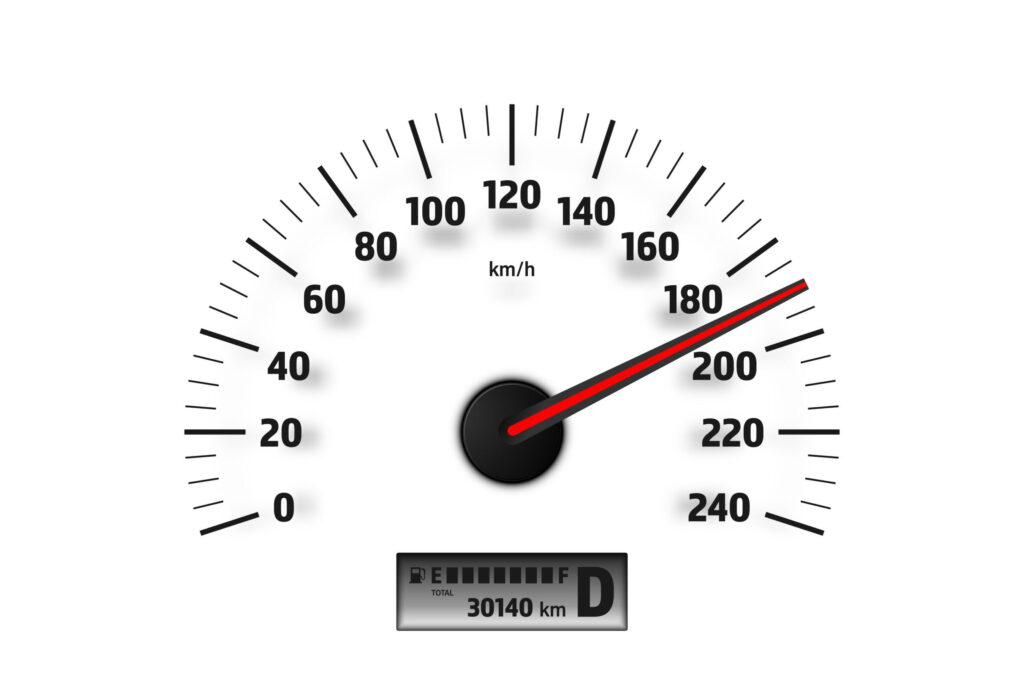
Our system uses a virtual odometer: the mileage is calculated based on the initial reading entered (ideally at the time of installation) and the distance subsequently travelled as recorded by GPS.
The Tax and Customs Administration’s report is based on this virtual mileage, which may differ slightly from the odometer reading in the vehicle. This may be due to factors such as tyre pressure, driving behaviour or weather conditions.
The virtual odometer is therefore a tool, not the exact reference for your journey log.
We therefore recommend checking the vehicle’s mileage weekly – or at least monthly – and updating the opening reading in the report so that the closing readings match again.
Saving & managing reports
We strongly recommend that you do not wait until the end of the year to produce the reports, but do so periodically — weekly or monthly — and save or merge the files. This will help you keep track of things and avoid mistakes.
If you are not the administrator of the GPS system, you must still include the following in the report for the tax authorities:
- The make of the vehicle
- The type of vehicle
- The registration number (if not already entered in the system)
As it is not yet technically possible to automatically recognise alternative routes, you will need to add these manually where applicable.
Disclaimer: Rental Tracker provides a tool for recording journeys, but is not responsible for the completeness or accuracy of the data entered or the reports generated. The user remains responsible for complying with the requirements of the tax authorities.
Heeft u vragen of hulp nodig?
Staat de gewenste instructie er niet tussen of kunt u extra ondersteuning gebruiken? Ons supportteam helpt u graag verder en is iedere werkdag bereikbaar van 8.00 tot 20.00 uur.
 Dutch
Dutch  English
  German
  Italian
  Spanish
  Danish